7 Ways to Stop Games Lagging on Your iPhone
Nothing ruins a good game faster than lag. Your character freezes mid-fight, the ball teleports across the pitch, or the frame rate stutters just as you line up the perfect shot. The good news is that most iPhone lag is fixable without buying a new phone. In many cases the cause is something simple — a full storage drive, a weak connection, or background apps quietly eating your processor — and the fix takes less than a minute once you know where to look.
Every step below uses a real iOS settings path that you can follow on your own iPhone, and the first step, Game Mode, is an official Apple feature introduced in iOS 18. Work through the list in order, and test your game after each change so you can see which one made the difference.
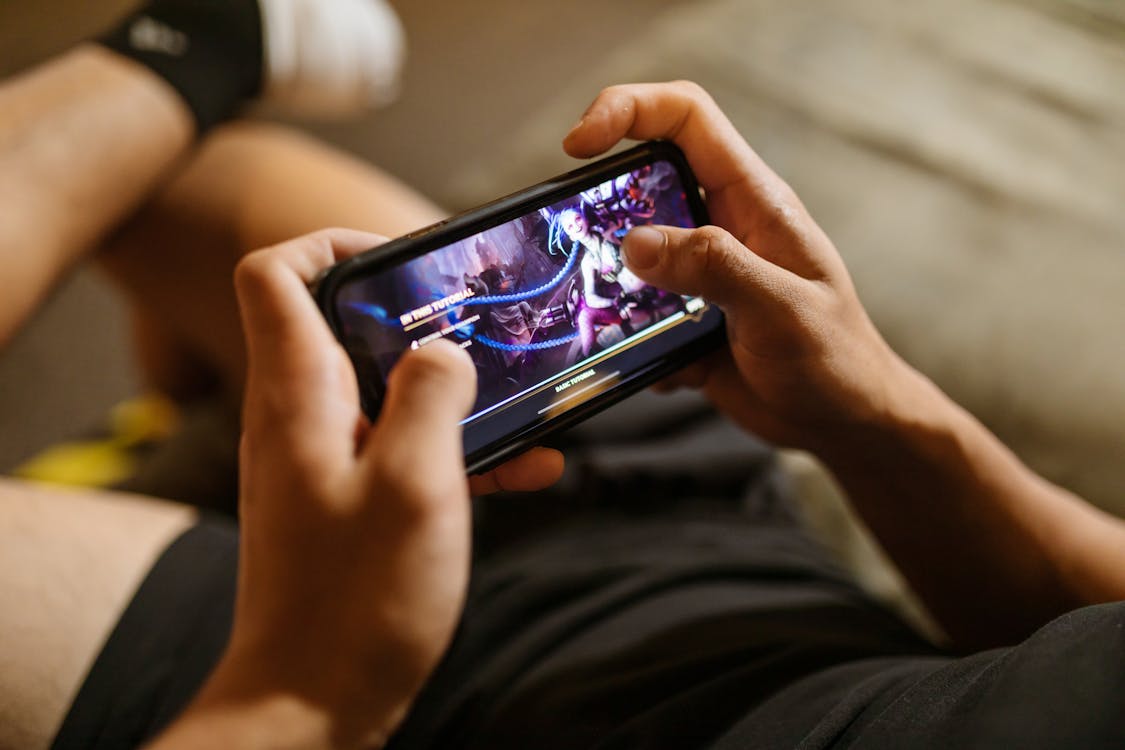
Photo: RDNE Stock project / Pexels — stock illustration, not a screenshot of any game.
1. Let Game Mode Do the Heavy Lifting
Game Mode arrived with iOS 18, and it is the single most useful tool Apple has given mobile gamers. When you open a game, it turns on automatically, minimising background activity so the game gets more of your processor and graphics power, which helps sustain steadier frame rates. It also reduces audio delay for AirPods and makes wireless controllers more responsive by increasing the Bluetooth polling rate. You will see a small “Game Mode On” notice at the top of the screen when it starts. If you ever need to switch it off, open Control Center while the game is running, tap the game name at the top, and toggle Game Mode off. There is no settings page for it — it only appears while a game is open — so do not waste time searching Settings for a switch that is not there.
2. Free Up Storage Before You Play
A nearly full iPhone slows everything down, and games suffer first because they constantly read and write data. Open Settings, then General, then iPhone Storage. If you have less than a few gigabytes free, delete old videos, remove apps you no longer use, or let iOS offload unused apps automatically from that same screen. Aim to keep at least 10 percent of your storage free.
Read Also: 5 iPhone Settings Every Mobile Gamer Should Change Today
5 Hidden Gems Adventure Games for iPhone and iPad for Gamers
3. Close Background Apps and Stop Background Refresh
Apps running in the background steal processor time and memory from your game. Before an important match, swipe up from the bottom of the screen and flick away apps you do not need. For a longer-term fix, go to Settings, then General, then Background App Refresh, and turn it off for apps that do not need to update while you are away — social media and shopping apps are the usual suspects. Your game will still refresh itself normally; only the apps you are not using will stop competing for resources.
4. Check Your Connection Before Blaming the Phone
Many players blame their iPhone when the real problem is the network. Online games need a stable, low-latency connection, and a weak Wi-Fi signal is the most common cause of rubber-banding and delayed actions. Move closer to your router, or switch to mobile data if your Wi-Fi is crowded. You can also reset network settings from Settings, then General, then Transfer or Reset iPhone, then Reset, then Reset Network Settings — but note that this erases saved Wi-Fi passwords, so only do it when other fixes have failed.
5. Lower the Graphics Settings Inside the Game
Almost every demanding game lets you adjust its own graphics quality, frame rate and resolution. If your phone is a few years old, dropping from high to medium graphics, or from 60 frames per second to 30, can turn a stuttering game into a smooth one. The visual difference on a small phone screen is smaller than most players expect, while the performance gain is often dramatic. Look in the game's own settings menu — usually under Graphics, Display or Performance — rather than in the iPhone Settings app.
6. Keep Your iPhone Cool and Charged
Heat is the silent enemy of smooth gaming. When an iPhone gets hot, it deliberately slows its processor down to protect itself, which feels exactly like lag. Take the phone out of a thick case while you play, avoid gaming while it charges in direct sunlight, and give it a short break if the back feels warm. Also check Settings, then Battery: Low Power Mode caps performance while it is on, so switch it off before you play, and low battery health can throttle performance too.
7. Update iOS and the Game Itself
Finally, keep everything updated. Go to Settings, then General, then Software Update, and install any iOS update that is waiting, because Apple regularly ships performance and stability fixes for games. Then open the App Store, tap your profile icon, and update the game itself. Developers frequently patch lag and frame-rate problems after launch, and playing on an old version means living with bugs that have already been fixed. After updating, restart your iPhone once — a fresh boot clears temporary memory and gives the game a clean start.
Lag is frustrating, but it is rarely permanent. Start with Game Mode and storage, which fix the most cases, then work through the connection, graphics and heat checks. If none of these steps help, the game may simply be too demanding for an older model — useful information when you next choose a phone.
Source: iGeeksBlog — Game Mode on iPhone: What It Is and How to Turn It On — https://www.igeeksblog.com/what-is-game-mode-on-iphone/
