7 Tips to Reduce Lag in Mobile Games
Nothing ruins a good game faster than lag. One moment you are about to land the winning shot, the next your character is frozen, your frame rate has collapsed to a slideshow and the match is lost. Lag comes in two forms: low frame rates, where the game itself stutters on your phone, and high network latency, where the connection between you and the server is slow. Both are fixable more often than players think. Here are seven practical tips that work on Android and iPhone, drawn from the performance advice in Android's game development guides.
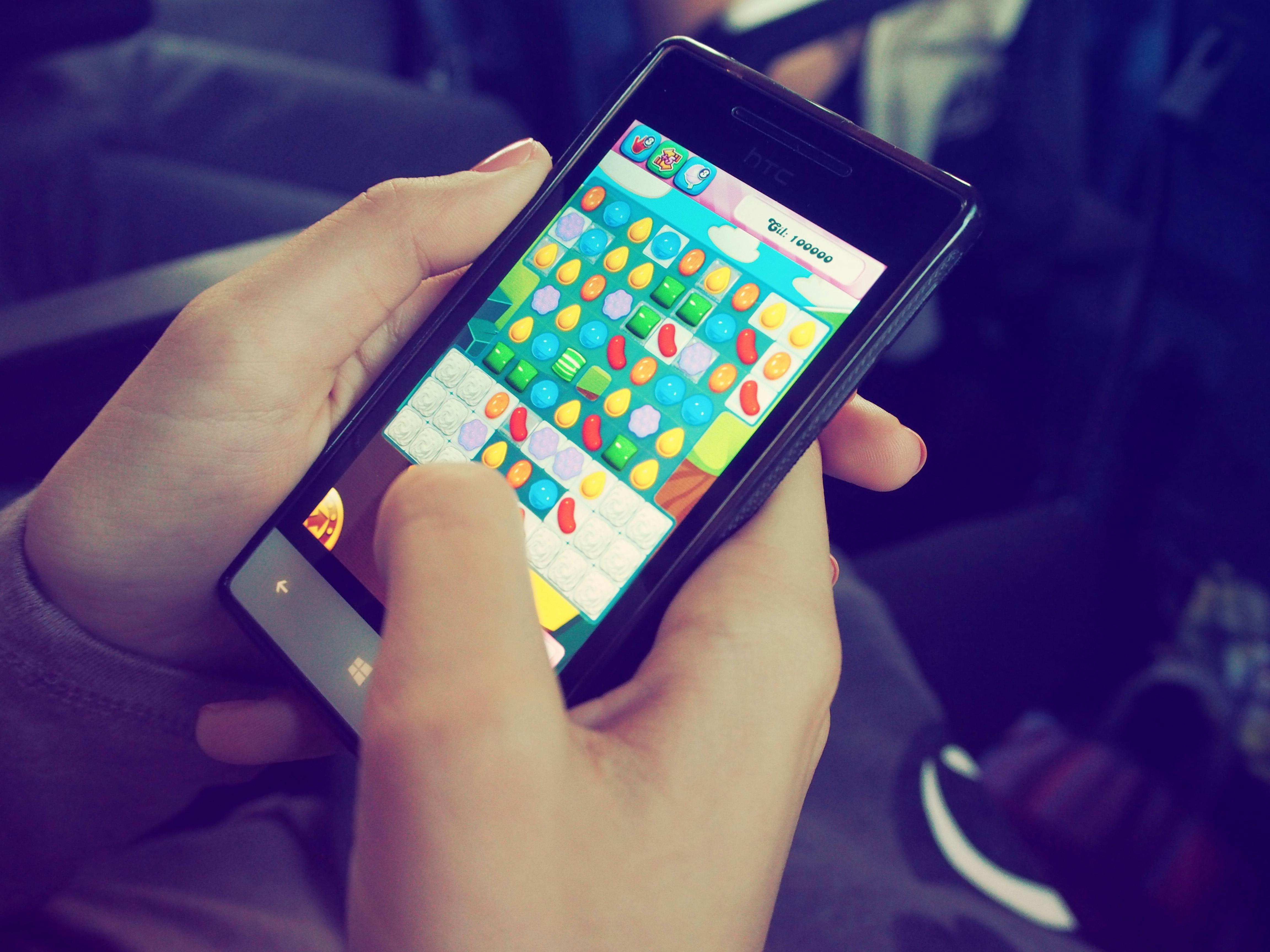
Photo by Beata Dudová from Pexels. This is a free stock illustration and does not show any specific game.
1. Close background apps before playing
Every app running in the background takes a share of your phone's processor and memory. Social media apps, browsers with many tabs and music streaming all compete with your game for resources, and Android's own performance guides note that memory pressure can force the system to spend time swapping data instead of rendering your game. Before an important match, swipe away the apps you are not using, and if your phone has a game mode or game launcher, use it: it can automatically limit background activity while you play.
2. Lower the graphics settings inside the game
Most modern mobile games let you choose graphics quality, frame rate, shadows and effects. Turning these down is the single fastest way to fix stuttering on an older or mid-range phone. A smooth frame rate matters far more than pretty shadows: Android's game performance documentation stresses that consistent frame pacing, delivering each frame on time, matters more than the highest possible frame count. Many phones also have a high refresh rate display, so try the game's 60 fps or 90 fps mode first, then lower texture quality if the frame rate still drops during busy fights.
3. Play on a stable Wi-Fi connection
Online lag is usually a network problem, not a phone problem. A strong Wi-Fi signal on the 5 GHz band is normally better than a crowded 2.4 GHz network, because it has less interference from neighbours. Sit closer to your router, and avoid playing while someone else in the house is downloading a large update or streaming in 4K. If you must use mobile data, check that you have a strong 4G or 5G signal; a weak signal with one bar will make even a simple game feel unresponsive. Some competitive games show your ping in the corner of the screen: under 50 ms is good, over 150 ms will feel sluggish.
4. Free up storage space
A phone that is almost full has nowhere to write temporary files, and that slows everything down, including games. Android's performance guidance points out that a device under memory pressure spends extra time on housekeeping instead of running your game. Aim to keep at least 10 to 20 percent of your storage free. Delete games you no longer play, clear the cached data of apps you use rarely, and move photos and videos to cloud storage or a computer. You may be surprised how much smoother a game loads and plays afterwards.
5. Keep your phone cool
Heat is the silent killer of mobile gaming performance. When a phone gets too hot, it deliberately slows down its processor and graphics chip to protect itself, a process called thermal throttling, and Android's documentation warns that this directly cuts frame rates. Take the phone out of a thick case while playing, avoid charging while gaming if your phone gets warm, and do not play in direct sunlight or under a blanket. Short breaks between matches let the phone cool down and keep speeds high for longer.
6. Update your game and your system
Game developers release performance patches all the time, fixing memory leaks, optimising new maps and adjusting settings for new phone models. Playing on an old version can mean playing with bugs the developer already fixed. Keep your games updated through Google Play or the App Store, and install system updates too: they often include graphics driver improvements and better power management. Restarting your phone once a week also helps, because it clears temporary files and frees memory.
Read Also:
- MotoGP Qatar Grand Prix 2026 Result: Bezzecchi Wins at Lusail as Marquez Extends Championship Lead
- Sao Paulo Grand Prix 2026: Preview and How to Watch
7. Use game mode and do not disturb
Most Android phones and iPhones now have a built-in game mode that does two things: it prioritises the game's performance and it blocks notifications and calls while you play. That matters more than it sounds. A notification popping up at the wrong moment can pull the game out of full screen, and an incoming call can disconnect you from a match entirely. Turn on game mode from your quick settings, switch on Do Not Disturb, and give the game your phone's full attention. If your phone lets you block calls during gaming, use that setting too.
Start with the easy wins: close background apps, lower the graphics settings until the frame rate is steady, and play on the strongest connection you can get. If the game still lags after that, free up some storage and check whether your phone is overheating. In most cases one of these seven tips is enough to turn a stuttering mess into a smooth match.
Source: Android Developers — Configure system tracing, game performance guide covering frame rate consistency, thermal throttling and memory https://developer.android.com/games/optimize
